Undo Changes in Git: Restore, Revert, Reset, and Clean
Undoing changes in Git depends on where the change lives.
Before choosing a command, answer one question: is the change uncommitted, committed locally, or already pushed?
That distinction matters because some commands only change your working directory, while others change commit history.
Short Answer
Use this as the beginner decision table:
- Unstaged tracked file:
git restore <file> - Staged file you want to unstage:
git restore --staged <file> - Staged and unstaged file you want to discard:
git restore --staged --worktree <file> - Untracked files you want to delete:
git clean -n, thengit clean -f - Bad commit already pushed:
git revert <commit> - Bad local commit not pushed yet:
git reset --soft HEAD~1orgit reset HEAD~1 - Bad local commit and you want to throw it away:
git reset --hard HEAD~1
Run git status first. It tells you which bucket you are in.
Safe First Step
Before undoing anything, inspect the repository:
git status
git diff
git diff --staged
git status shows whether files are staged, unstaged, or untracked. git diff shows unstaged changes. git diff --staged shows what is already prepared for the next commit.
If you are still getting comfortable with this distinction, start with Git Staging Area Explained.
Remove Untracked Files
Untracked files are files Git sees but does not track yet. They might be generated build output, temporary notes, or new files you created by mistake.
Preview first:
git clean -n
If the preview is correct, remove them:
git clean -f
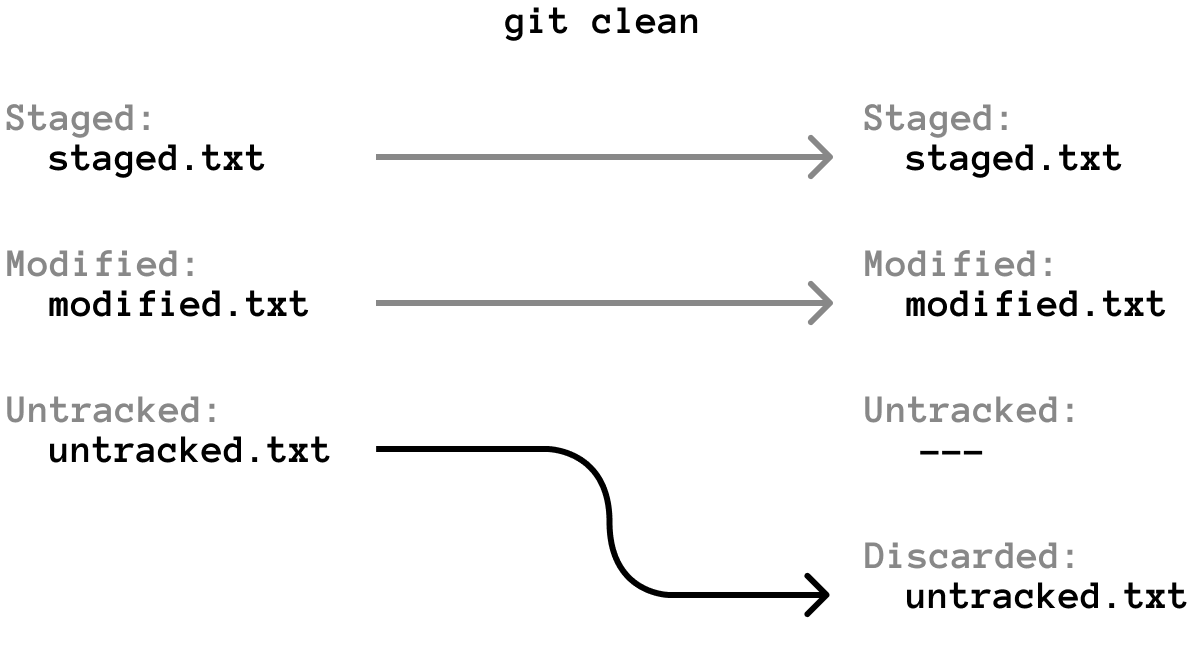
Do not skip the preview when you are learning. git clean -f deletes files; it does not move them to the trash.
Discard Changes in a Tracked File
If a tracked file has unstaged changes and you want to go back to the last committed version:
git restore README.md
For every tracked file in the current directory:
git restore .
This discards working-directory changes. It does not affect commits.
Unstage a File Without Deleting the Work
If you staged a file but want to keep editing before committing:
git restore --staged README.md
This removes the file from the staging area but keeps the changes in your working directory.
Discard Both Staged and Unstaged Changes
If you want a tracked file to match the last commit again, including staged changes:
git restore --staged --worktree README.md
For all tracked files:
git restore --staged --worktree .
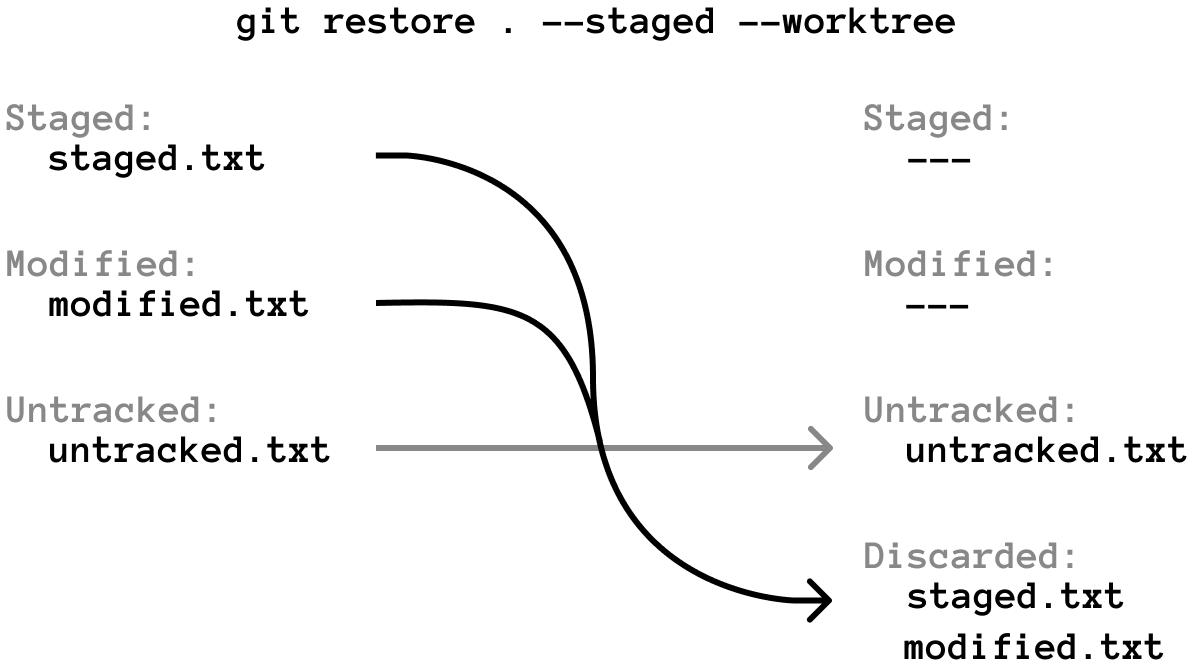
This is useful when the current working directory is not worth saving and you want to return tracked files to a clean state.
Undo a Commit That Was Already Pushed
If the commit is already pushed, prefer git revert.
git revert <commit-id>
git revert creates a new commit with the opposite change. The original commit stays in history, and the new commit undoes its effect.
That is why revert is the safe collaboration command. It does not rewrite shared history.
Example:
git log --oneline
git revert a8c92f1
git push
Use Git Log for Beginners if you need help finding the commit ID.
Undo a Local Commit With Reset
If the commit is local and has not been pushed, git reset is useful.
There are three common modes:
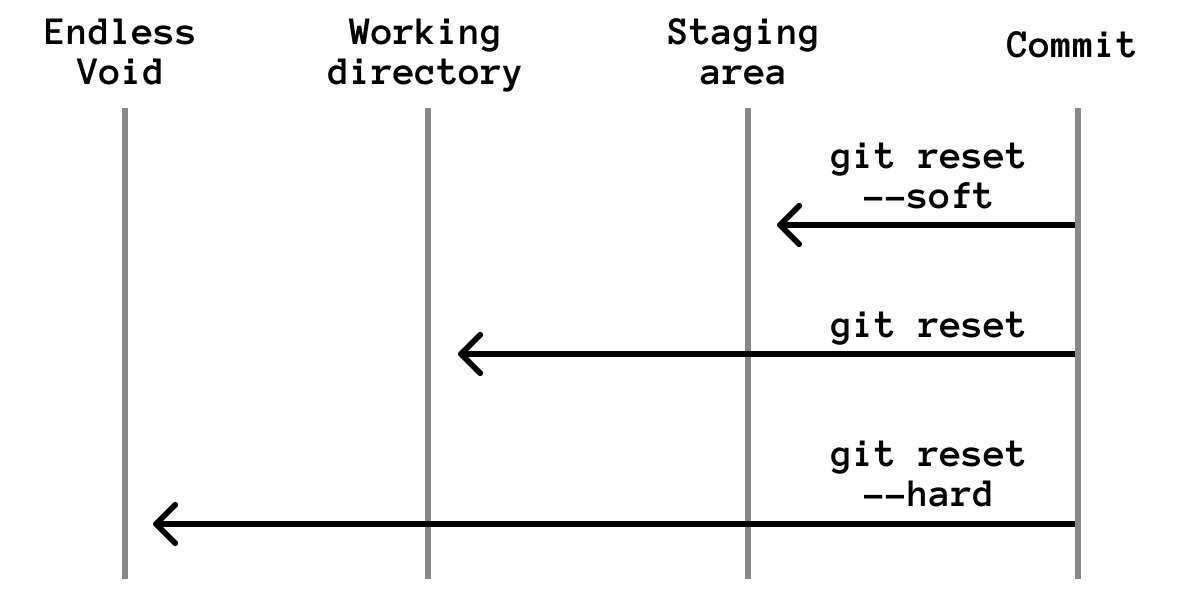
Move the last commit back into the staging area:
git reset --soft HEAD~1
Move the last commit back into the working directory:
git reset HEAD~1
Throw away the last commit and its changes:
git reset --hard HEAD~1
Be careful with --hard. It discards work. If you are not certain, use --soft or the default reset first.
Practical Recipes
I staged the wrong file
git restore --staged wrong-file.txt
I changed a tracked file and want to discard the edit
git restore wrong-file.txt
I created generated files and want to remove them
git clean -n
git clean -f
I committed too early but did not push
git reset --soft HEAD~1
Edit, stage, and commit again.
I pushed a bad commit
git revert <commit-id>
git push
Exercises
Exercise 1: Unstage Safely
Modify a file, stage it, then unstage it:
git add README.md
git restore --staged README.md
git status
Expected result: the file is modified but not staged.
Exercise 2: Preview Untracked Cleanup
Create a temporary file:
printf "temporary\n" > scratch.txt
git clean -n
Expected result: Git tells you it would remove scratch.txt.
Exercise 3: Undo a Local Commit
Create a small commit, then run:
git reset --soft HEAD~1
git status
Expected result: the commit is gone from history, but its changes are staged.