Git Log for Beginners: How to Read Commit History
git log shows the commit history of a repository.
It answers questions like:
- What changed recently?
- Who made a change?
- Which commit introduced this code?
- What branch did this work come from?
- What did a specific commit contain?
If commits are saved snapshots, git log is the table of contents for those snapshots.
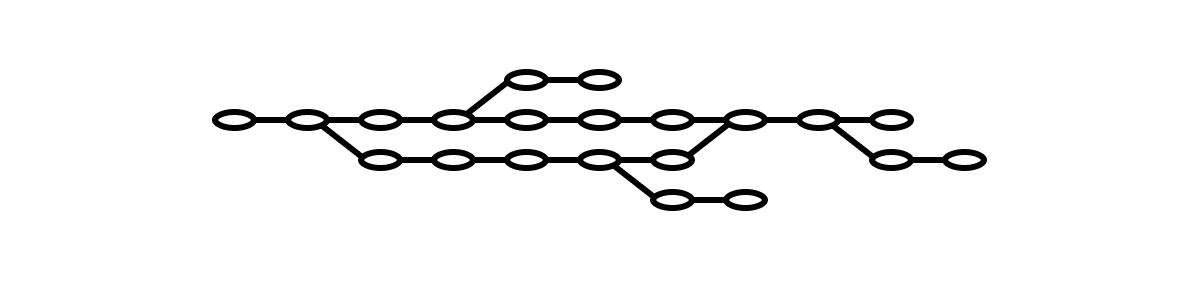
Start With the Short Version
The default git log output is detailed, but it can feel noisy when you are learning.
Start here:
git log --oneline
Example output:
a8c92f1 Add account settings page
7d41b64 Fix empty search results state
2c33d90 Add header search
0f17a6b Initial project setup
Each line contains:
- A short commit ID.
- The first line of the commit message.
The newest commit appears at the top.
Read the Full Log
Run:
git log
You will see entries like this:
commit a8c92f187c1f4d861e5a1c4d9e71d520a5d68f31
Author: Maksim Ivanov <[email protected]>
Date:   Sat May 16 13:22:00 2026 +0000

    Add account settings page
The long commit ID is useful when you need an exact reference. The author and date explain when the commit was created and by whom. The message gives the human reason for the snapshot.
If Git opens the log in a pager, press q to exit.
Show What a Commit Changed
To inspect one commit, use git show:
git show a8c92f1
You can use the short ID from git log --oneline. Git only needs enough characters to identify one commit in the repository.
git show displays:
- Commit metadata.
- The commit message.
- The diff introduced by that commit.
This is useful when the message tells you what happened, but you need to see the actual code or documentation change.
Add a Branch Graph
When a repository has branches and merges, use:
git log --oneline --graph --decorate
Example:
*   9e3a7a1 (HEAD -> main) Merge branch 'search'
|\
| * 5fd1820 (search) Add search dropdown
| * 42a13cb Build Pagefind index
* | 44e72f8 Update project page copy
|/
* 0f17a6b Initial project setup
The * characters are commits. The lines show how branches split and joined. Labels like (HEAD -> main) and (search) show where names point right now.
This command is one of the best ways to understand a repository before changing it.
Limit the Log to One File
Sometimes you only care about one file:
git log -- README.md
That shows commits that touched README.md.
If the file was renamed, add --follow:
git log --follow -- README.md
This is useful when you are trying to understand why a file looks the way it does.
Search Commit Messages
Use --grep to find commits by message:
git log --oneline --grep="search"
This searches commit messages, not file contents.
It works well when your project uses clear commit messages. If every message says "fix", this command becomes much less useful.
Search for Code Changes
If you want to find commits that added or removed a specific string, use -S:
git log -S"site-search" --oneline
This is different from --grep. --grep searches messages. -S searches the changes in commits.
Use this when you remember a function name, CSS class, environment variable, or piece of text, but you do not remember when it changed.
Compare Two Commits
Once you have two commit IDs, compare them:
git diff 0f17a6b a8c92f1
This shows what changed between those two snapshots.
You can also compare a previous commit to the current state:
git diff 0f17a6b HEAD
HEAD means the commit currently checked out.
A Practical Debugging Workflow
When something breaks, avoid guessing first. Read the recent history.
Start with:
git log --oneline --graph --decorate -20
Then inspect suspicious commits:
git show <commit-id>
If the issue is in one file:
git log --follow -- path/to/file
If you know a string that changed:
git log -S"changedString" -- path/to/file
This workflow gives you context before you start editing.
Common Confusions
The newest commit is at the top
git log reads from newest to oldest. This is the opposite of how many people expect a history list to work.
A short hash is enough
You do not need to copy the full commit ID every time. Use the short hash from git log --oneline unless Git says it is ambiguous.
git log does not change files
Reading history is safe. git log, git show, and git diff inspect the repository. They do not move branches or change your working directory.
Exercises
Exercise 1: Read the Recent History
In any Git repository, run:
git log --oneline -5
Expected result: you see the five newest commits.
Exercise 2: Inspect One Commit
Copy a commit ID from the log:
git show <commit-id>
Expected result: Git shows the commit details and the diff.
Exercise 3: Draw the Branch Graph
Run:
git log --oneline --graph --decorate -20
Expected result: you see commits with branch labels and graph lines.
Exercise 4: Check One File
Pick a file that has existed for a while:
git log --follow -- path/to/file
Expected result: Git shows only commits related to that file.