Git Remote Origin, Push, Pull, and Fetch Explained
A Git remote is a named connection to another copy of the repository.
Most , that other copy lives on GitHub, GitLab, Bitbucket, or a private server. The default remote name is origin.
You use remotes to share commits with other machines and other people.
What Is origin?
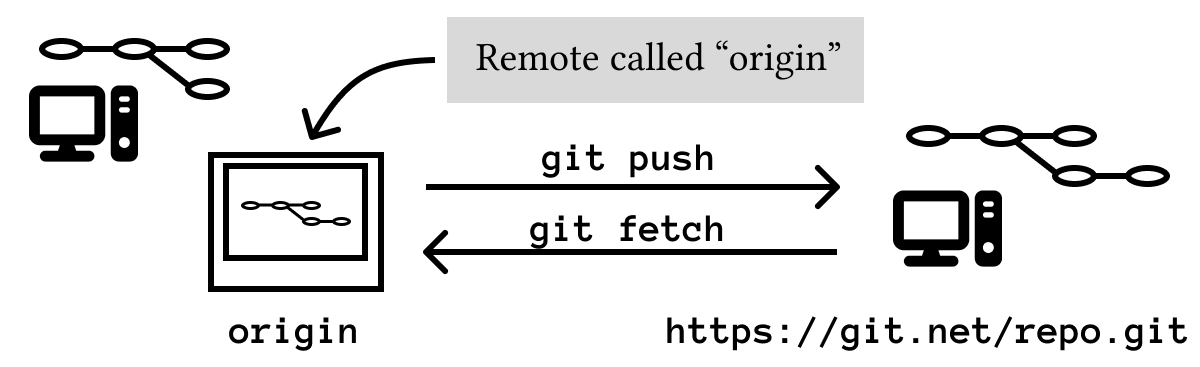
origin is a name.
When you clone a repository, Git creates a remote named origin pointing back to the repository you cloned from:
git clone [email protected]:example/project.git
cd project
git remote -v
Example output:
origin  [email protected]:example/project.git (fetch)
origin  [email protected]:example/project.git (push)
The same remote is listed twice because Git can use one URL for fetching and another URL for pushing. In normal projects, they are the same.
Add a Remote to an Existing Repository
If you created the repository locally first, add the remote yourself:
git remote add origin [email protected]:example/project.git
Check it:
git remote -v
If the URL is wrong, update it:
git remote set-url origin [email protected]:example/project.git
Push Local Commits
To send local commits to a remote branch:
git push origin main
The first time, set the upstream relationship:
git push -u origin main
After that, Git knows that your local main branch tracks origin/main. Future pushes can be:
git push
Run git status to see whether your branch is ahead of the remote:
git status
If Git says your branch is ahead by one commit, you have local work that has not been pushed yet.
Fetch Remote Changes
git fetch downloads remote history without changing your current files:
git fetch origin
After fetching, you can inspect what changed:
git log --oneline --graph --decorate --all -20
This is the careful option. Fetch first when you want to see what happened before integrating it.
Pull Remote Changes
git pull fetches and then integrates the remote branch into your current branch:
git pull
If you need to be explicit:
git pull origin main
In beginner terms:
fetch: update my knowledge of the remote.pull: update my branch with remote changes.push: send my commits to the remote.
What Is origin/main?
origin/main is your local snapshot of the main branch on the origin remote.
It is not the remote server itself. It is Git's last fetched view of that branch.
This means origin/main can be stale. Run:
git fetch origin
to update your local view of the remote branches.
Rename or Remove a Remote
Rename origin to github:
git remote rename origin github
Remove a remote:
git remote remove github
Removing a remote from your local repository does not delete the repository on GitHub. It only removes the saved connection from your machine.
Common Mistakes
Pushing to the Wrong Remote
Always check:
git remote -v
before pushing a repository you cloned or inherited.
Pulling Without Checking Local Work
Before pulling:
git status
If your working directory is dirty, finish, stash, or discard your local work first. Pulling with unrelated local changes can create avoidable conflicts.
Confusing fetch and pull
If you want to inspect remote changes first, use fetch. If you want to immediately bring them into the current branch, use pull.
Exercises
Exercise 1: Inspect Remotes
In any cloned repository, run:
git remote
git remote -v
Expected result: you see the remote name and URL.
Exercise 2: Fetch Without Merging
Run:
git fetch origin
git status
Expected result: Git updates remote-tracking branches without directly editing your working files.
Exercise 3: Set Upstream on First Push
Create a local branch and push it:
git switch -c practice-branch
git push -u origin practice-branch
Expected result: Git creates the remote branch and connects your local branch to it.